

Google AI Series Part 1: Mastering the "Brains" and the Office
Why Google's Workspace Integration Is the Real Deal (Not Another Chatbot)


This is Part 1 of the “Creator’s Guide to Google AI” series. If you missed the roadmap, check out the announcement post.
Most people’s experience with Google AI goes something like this:
They go to gemini.google.com, type in a prompt they’d normally send to ChatGPT, get a slightly different answer, shrug, and go back to their old workflow.
If that sounds familiar, you’re missing the point.
But here’s what I need to acknowledge upfront: I work with AI every day.
I’m deep in this world, testing tools, building systems, and keeping up with what I can (and remember, I’m not a coder. I’m a business owner who fell in love with WordPress 17 years ago when I realized I could learn it. I was a widowed Mom with two small kids who needed to find something to do from home).
This can create a bit of a blind spot. I can forget that not everyone is tracking Google’s announcements or even knows what’s possible beyond the basic chat interface.
This is why I’m doing this series.
Not to show off what I know (trust me, I’m learning even more as I do these deep dives), but because there’s a gap between what those of us in the AI world assume is common knowledge and what actually is. If you’re running a business and trying to figure out which AI tools are worth your time, you shouldn’t have to hunt through tech blogs or decipher developer speak (or ‘stumble’ into new updates).
So let’s bridge that gap.
The real power of Google’s AI ecosystem isn’t just the chatbot. It’s the integration. It’s the fact that the “Brain” (Gemini) is plugged directly into the “Office” (your Docs, Gmail, Drive, and Sheets).
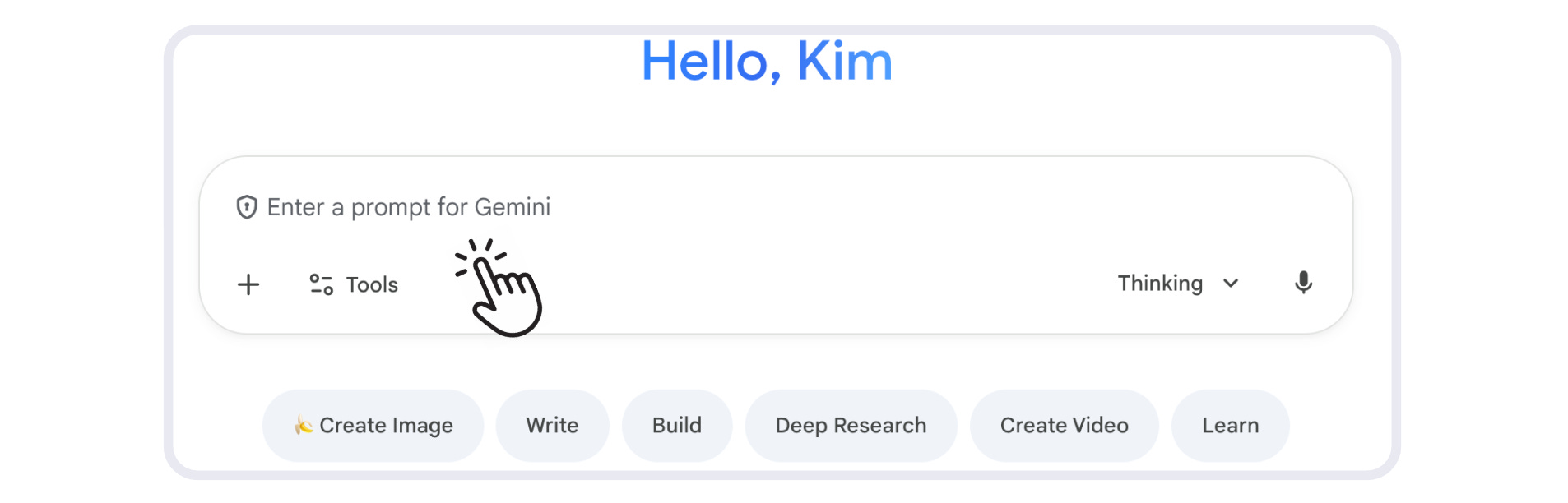
When you stop treating Gemini as a standalone website (or a fancier “Google”) and treat it as an employee working within your workspace, everything changes.
In Part 1 of this series, we’re going deep on what I’ll call the Productivity Engine. I’m going to break down the differences between the free and paid models and show you exactly how to use the Workspace features to buy back hours in your week.
Let’s get into it.
The “Brains”: Free Gemini vs. Gemini Advanced
First, we need to clear up the confusion. Google creates a lot of models, but for you as a business owner, there are really only two tiers you need to worry about.
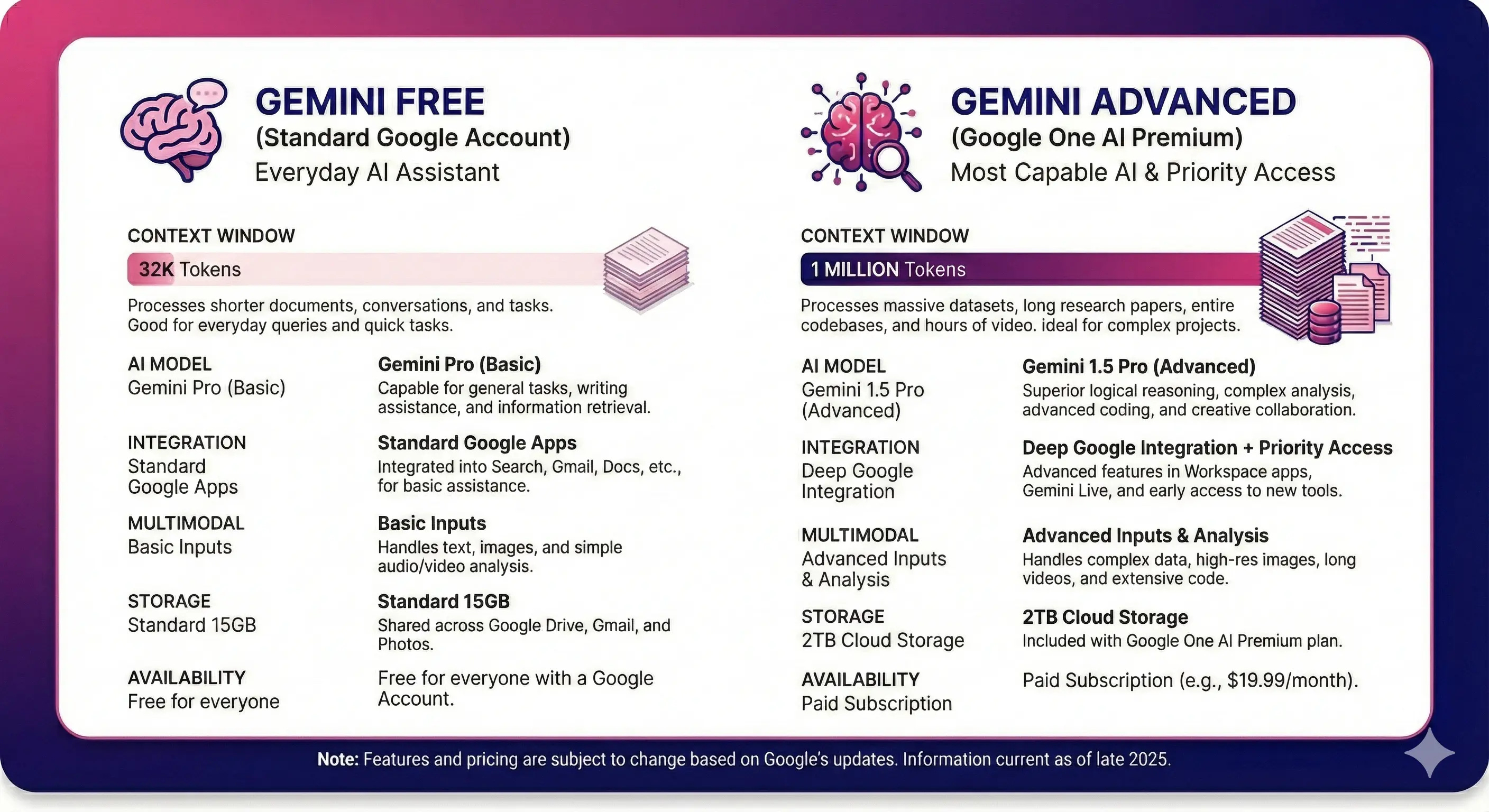
1. Gemini (The Free Version)
This is the “Flash” model. It’s fast, it’s capable, and it’s great for quick tasks.
Best for: Quick brainstorming, simple emails, travel planning, and general questions.
The Limit: It has a smaller “context window” and isn’t as sharp with complex logic or massive amounts of data.
Think of it like having a really smart intern—great for the basics, but you wouldn’t hand them your entire year’s worth of client data and ask them to find patterns.
2. Gemini Advanced (The Paid Version)
This is where things get interesting.
When you pay for the Google AI Pro plan ($19.99/month, formerly Google One AI Premium… they seriously need to work on picking the right name out of the gate, lol), you get access to Gemini 3 Pro—Google’s newest and most intelligent model, released in November 2024.
The Superpower: It has a massive context window; typically 1 million tokens, but it can handle up to 2 million tokens in some configurations.
Translation: You can upload a 1,500-page PDF, a video file, or an entire codebase, and it can “hold” all of that information in its head at once.
Why it matters for you: You can upload your entire year’s worth of newsletters and ask it to find trends, gaps, and opportunities. ChatGPT often chokes on this volume; Gemini 3 Pro thrives on it.
The November 2025 release brought improved reasoning and multimodal capabilities, which basically means it got smarter at connecting different types of information (text, images, video) and drawing insights from them.
My Verdict: If you’re running a business, the upgrade to Advanced is 100% worth it, especially for the integration we’ll discuss next.
However, start with the free version until you know this is something you’ll add to your workflow.
*Note: If you’re using Google Workspace, you don’t need ‘Gemini Advanced.’ The powerful models are often built right into your plan, complete with the enterprise security you actually need.
The “Office”: Gemini for Workspace
This is where Google’s AI ecosystem gets really interesting.
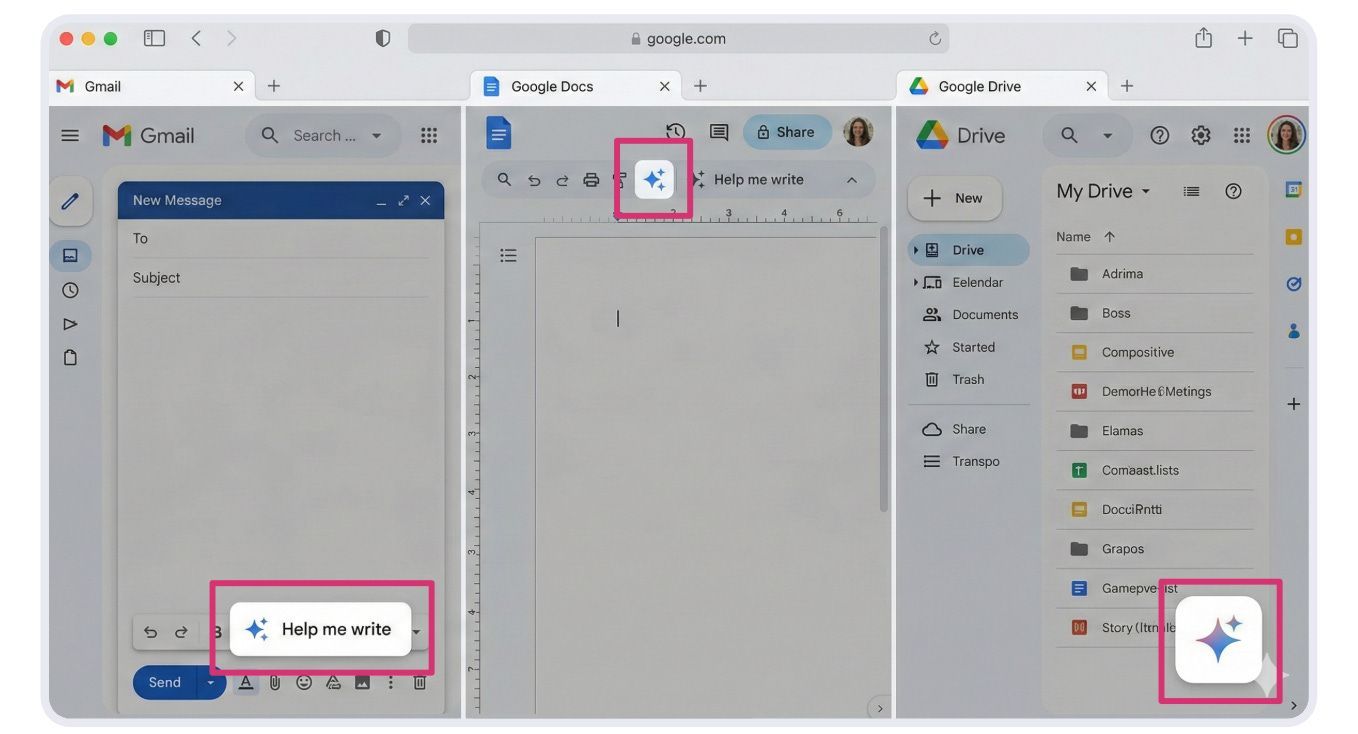
When you have the Google AI Pro plan, Gemini isn’t just a chatbot you visit. It shows up as a sparkle icon (or sidebar) inside Google Docs, Gmail, Drive, and Slides.
Most people use it to generate text. That’s fine, but it’s not where the real value is.
The power is in how it connects information across your entire workspace.
Let me show you how I actually use it.
1. The Gmail Triage Assistant
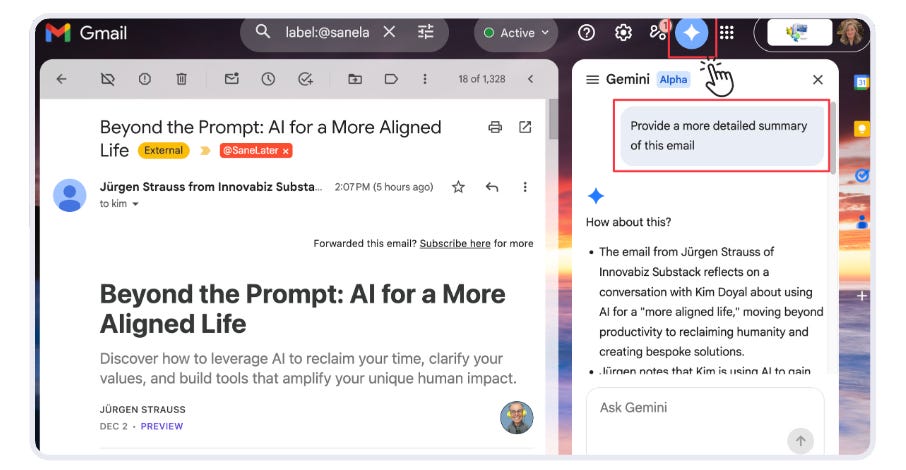
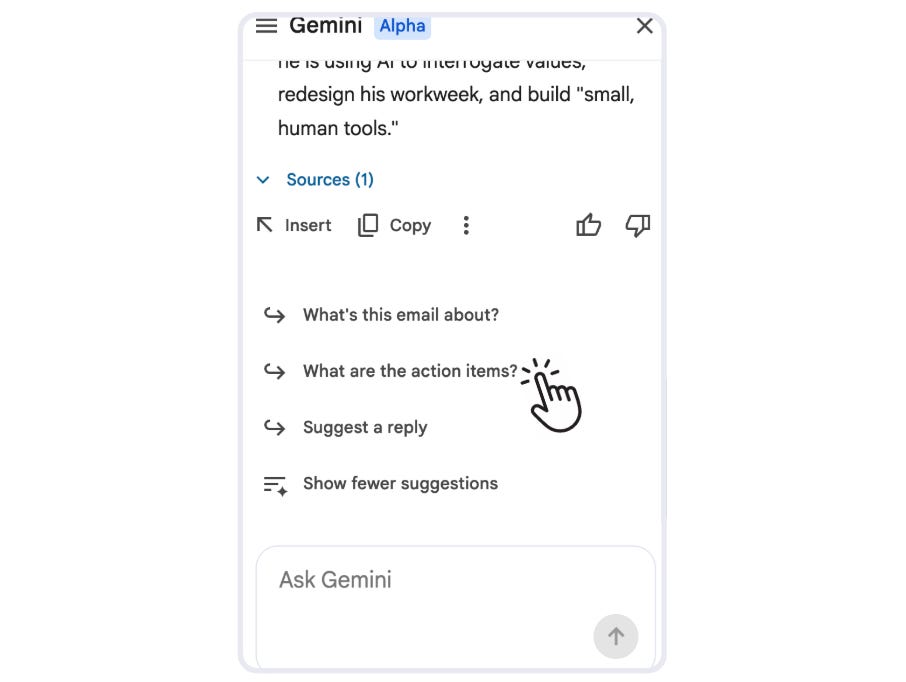
We all drown in email. The “Summarize this email” button is nice, but the real power is in the sidebar.
The Workflow: Open a long, messy email thread from a client or contractor. Instead of reading all 45 replies (because who has time for that?), open the Gemini sidebar and prompt:
“Summarize the open action items from this thread and list the deadlines mentioned.”
The Result: Ta-da! Instant clarity. No more scrolling through 45 messages to find out what you’re actually supposed to do (seriously, just write a new email with a relevant subject line. 🙄)
Then you can hit “Reply” and use the “Help Me Write” feature to draft a response based on those action items.
I’ve been using this when I need it, and it always saves me time (and sanity).
2. The Google Docs Editor (Not Just Writer)
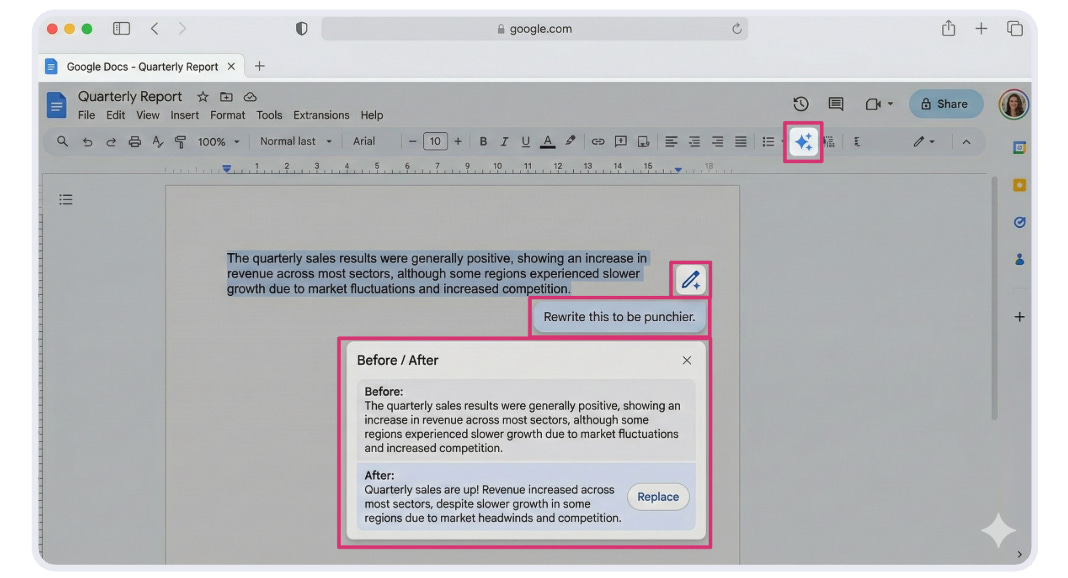
Generating generic blog posts inside Docs is boring. Using Gemini as a developmental editor? That’s where it gets good.
The Workflow: Highlight a paragraph that feels clunky. Click the Gemini pencil icon. Don’t just ask it to rewrite; give it specific instructions.
“Rewrite this to be punchier and more conversational. Remove the bro-marketing speak.”
Or a common one:
“This sounds like a robot wrote it. Make it sound like me (and then I give it my voice guide).”
The “Blank Page” Killer: Use the sidebar to pull information from other documents. You can say:
“Draft an intro for this blog post based on the ‘Q3 Strategy’ Google Doc in my Drive.”
It actually connects your files. This is huge if you’re like me and have ideas scattered across too many docs.
3. The Drive Detective
This is the feature that honestly feels like magic. We all have “digital hoarding” issues - files lost in nested folders from 2021 that you know exist but can’t find.
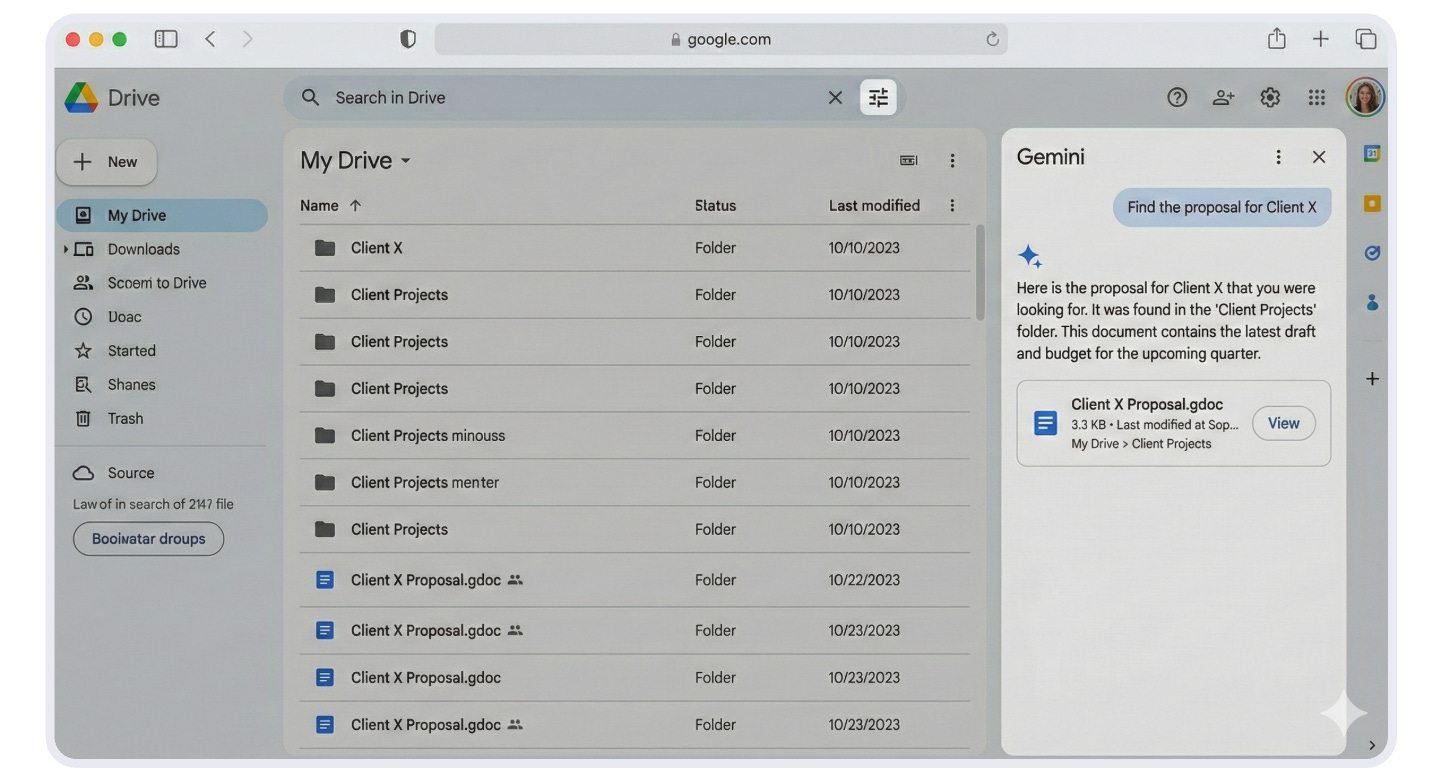
The Workflow: Go to Google Drive. Open Gemini and ask:
“Find the proposal I sent to Client X last year and summarize the pricing tiers we offered.”
The Result: It searches your files, reads the content, and extracts the answer without you ever opening a document.
I tested this with a proposal I wrote in 2023 (before my naming system got better), and I found it in about 10 seconds. I would have spent 20 minutes digging through folders.
No exaggeration—this alone is worth the $20/month (or your Workspace cost).
The Secret Weapon: Custom Gems
I talked about this in my “Clone the Best Parts of You” post, but it’s worth repeating here because it lives inside this ecosystem.
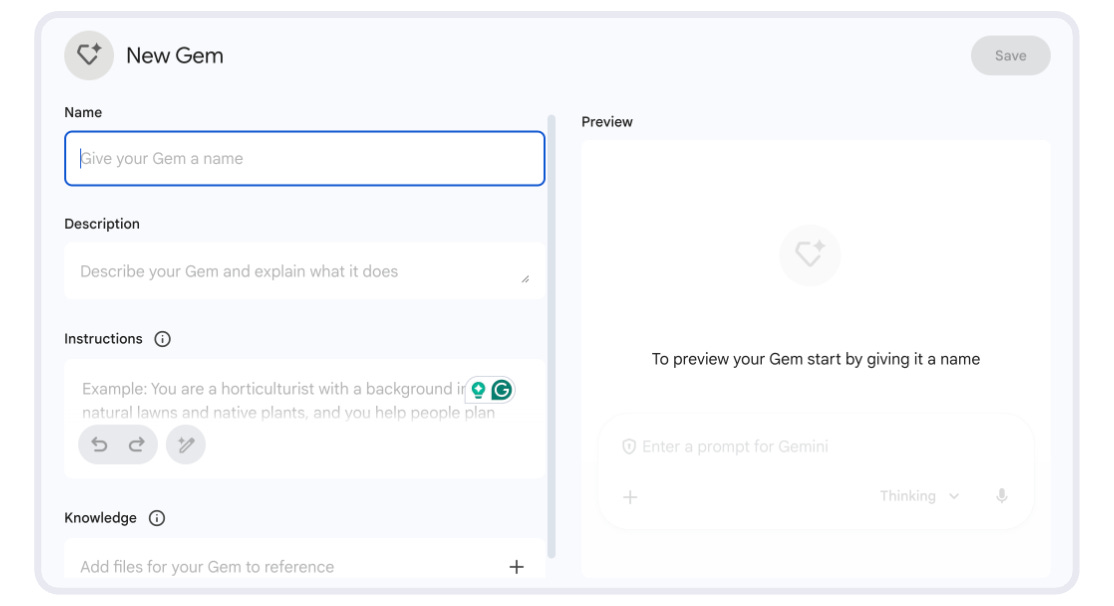
Gemini has a feature called Gems. These are custom versions of the chat assistant that you can pre-program with instructions.
Why use them?
Because repeating anything you do consistently creates friction, and friction kills momentum.
The Setup:
For example: Create a Gem called “My Custom Character” (or whatever you want to call it). Give it:
Your image description (the visual details that need to stay consistent)
The character’s appearance (hair color, style, clothing, age, specific features)
Key characteristics that must remain the same every time (expression, pose, setting, props)
The Daily Use:
Now, whenever you need a consistent character image, you don’t go to generic Gemini. You go to your “My Custom Character” Gem. It already knows exactly what your character looks like.
I have Gems for different types of content:
One for YouTube descriptions
One for Substack notes
One for social media captions
One for headline writing
It’s like having multiple assistants, each trained for a specific task.
When NOT to Use Gemini
These tools aren’t perfect. Let’s be honest about the limitations.
Please don’t use it for final polish; AI writing can feel soulless without heavy editing. Use it for drafts and structure, then add your voice.
Don’t blindly trust the facts; Gemini can hallucinate statistics even with its Google Search connection (even with its OWN products, it hallucinates!). Always verify numbers.
Don’t expect mind-reading; you still need to provide clear context. Garbage in, garbage out.
Your Action Plan: 3 Steps to Forward Motion
Want ROI from the Google ecosystem this week? Do these three things:
Check your subscription: Test the Google AI Pro trial for one month to see the difference in context window. Cancel if it doesn’t work.
Open the Side Panel: Click the sparkle icon in Google Docs and ask it to summarize what you’re looking at. Just break the ice.
The “Drive” Test: Ask Gemini to find specific info from an old file. This is where you’ll either get it or keep scrolling.
Next up: Part 2, where we move from “The Office” to “The Second Brain.” We’re talking about NotebookLM—the tool that’s fundamentally changing how I learn and research.
Stay tuned. 😉
I’ve been debating whether I should switch from paid ChatGpt to Gemini. I like the idea of being able to use it within Google docs. How do you find it stacks up to chat gpt when you use it a mentor?
Google, my forever love ❤️